Loading 3D Models in glTF Format
This note is based on DISCOVER three.js, mostly excerpts with some personal understanding
Basic Introduction
Over the past thirty years or so, there have been many attempts to create standard 3D asset exchange formats. Until recently, FBX, OBJ (Wavefront), and DAE (Collada) formats were among the most popular, although they all had issues preventing widespread adoption. For example, OBJ doesn't support animation, FBX is a closed format owned by Autodesk, and the Collada specification is overly complex, leading to large files that are difficult to load.
However, recently, a new contender called glTF has become the de facto standard format for exchanging 3D assets on the web. glTF (GL Transmission Format), sometimes called JPEG for 3D, was created by the Khronos Group, who are responsible for WebGL, OpenGL, and a host of other graphics APIs. glTF was first released in 2017 and is now the best format for exchanging 3D assets on the web and in many other areas. In this book, we'll always use glTF, and you should too if possible. It's designed for sharing models on the web, so file sizes are as small as possible, and your models will load quickly.
However, since glTF is relatively new, your favorite application may not have an exporter yet. In this case, you can convert models to glTF before using them, or use other loaders like FBXLoader or OBJLoader. All three.js loaders work the same way, so everything in this chapter still applies with only minor differences.
glTF files come in standard and binary forms. These have different extensions:
- Standard .gltf files are uncompressed and may come with an additional .bin data file.
- Binary .glb files contain all data in one file.
Both standard and binary glTF files may contain textures embedded in the file or may reference external textures. Since binary .glb files are much smaller, it's best to use this type. On the other hand, uncompressed .gltf files are easy to read in a text editor, so they may be useful for debugging.
Directory Structure
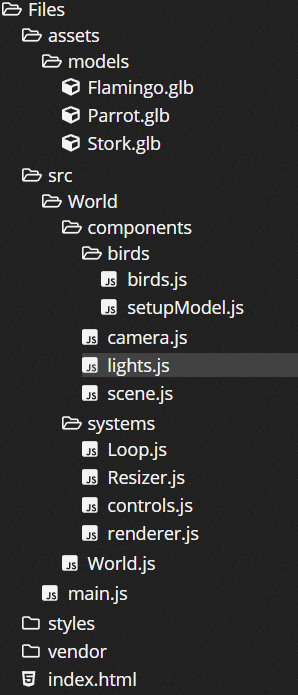
birds.js
import { GLTFLoader } from 'three/examples/jsm/loaders/GLTFLoader.js';

import { setupModel } from './setupModel.js';

async function loadBirds() {
  const loader = new GLTFLoader();

  const [parrotData, flamingoData, storkData] = await Promise.all([
    loader.loadAsync('/assets/models/Parrot.glb'),
    loader.loadAsync('/assets/models/Flamingo.glb'),
    loader.loadAsync('/assets/models/Stork.glb'),
  ]);

  console.log('Squaaawk!', parrotData);

  const parrot = setupModel(parrotData);
  parrot.position.set(0, 0, 2.5);

  const flamingo = setupModel(flamingoData);
  flamingo.position.set(7.5, 0, -10);

  const stork = setupModel(storkData);
  stork.position.set(0, -2.5, -10);

  return {
    parrot,
    flamingo,
    stork,
  };
}

export { loadBirds };
setupModel.js
function setupModel(data) {
  const model = data.scene.children[0];

  return model;
}

export { setupModel };
World.js
import { loadBirds } from './components/birds/birds.js';
import { createCamera } from './components/camera.js';
import { createLights } from './components/lights.js';
import { createScene } from './components/scene.js';

import { createControls } from './systems/controls.js';
import { createRenderer } from './systems/renderer.js';
import { Resizer } from './systems/Resizer.js';
import { Loop } from './systems/Loop.js';

let camera;
let controls;
let renderer;
let scene;
let loop;

class World {
  constructor(container) {
    camera = createCamera();
    renderer = createRenderer();
    scene = createScene();
    loop = new Loop(camera, scene, renderer);
    container.append(renderer.domElement);
    controls = createControls(camera, renderer.domElement);

    const { ambientLight, mainLight } = createLights();

    loop.updatables.push(controls);
    scene.add(ambientLight, mainLight);

    const resizer = new Resizer(container, camera, renderer);
  }

  async init() {
    const { parrot, flamingo, stork } = await loadBirds();
    // move the target to the center of the front bird
    controls.target.copy(parrot.position);
    scene.add(parrot, flamingo, stork);
  }

  render() {
    renderer.render(scene, camera);
  }

  start() {
    loop.start();
  }

  stop() {
    loop.stop();
  }
}

export { World };
Data Returned by GLTFLoader
{
  animations: [AnimationClip]
  asset: {generator: "Khronos Blender glTF 2.0 I/O", version: "2.0"}
  cameras: []
  parser: GLTFParser {json: {…}, extensions: {…}, options: {…}, cache: {…}, primitiveCache: {…}, …}
  scene: Scene {uuid: "1CF93318-696B-4411-B672-4C12C46DF7E1", name: "Scene", type: "Scene", parent: null, children: Array(0), …}
  scenes: [Scene]
  userData: {}
  __proto__: Object
}gltfData.animationsis an array of animation clips. Here, there's one flying animation. We'll use it in the next chapter.gltfData.assetscontains metadata showing this glTF file was created using the Blender exporter.gltfData.camerasis an array of cameras. This file doesn't contain any cameras, so the array is empty.gltfData.parsercontains technical details about theGLTFLoader.gltfData.sceneis aGroupcontaining any meshes in the file. This is where we'll find the parrot model.gltfData.scenes: The glTF format supports storing multiple scenes in one file. In practice, this feature is rarely used.gltfData.userDatamay contain additional non-standard data.
__proto__ is a standard property every JavaScript object has, which you can ignore.
Usually, you only need .animations, .cameras, and .scene (not .scenes!), and you can safely ignore everything else.