Transforms, Coordinate Systems, and Scene Graph
This note is based on DISCOVER three.js, mostly excerpts with some personal understanding
The Object3D Base Class
Instead of redefining .position, .rotation, and .scale properties multiple times for each object type, these properties are defined once on the Object3D base class, allowing all other classes that can be added to the scene to inherit from this base class. These include meshes, cameras, lights, points, lines, helpers, and even the scene itself. We'll informally refer to classes derived from Object3D as scene objects.
Object3D has many properties and methods beyond these three, all inherited by each scene object. This means positioning and configuring a camera or mesh works roughly the same as setting up a light or scene. Additional properties are then added to scene objects as needed, so lights get color and intensity settings, scenes get background colors, meshes get materials and geometries, and so on.
Scene Graph and World Coordinates
Besides adding mesh objects to the scene with scene.add(mesh), you can also add mesh objects to other mesh objects, forming a tree structure:
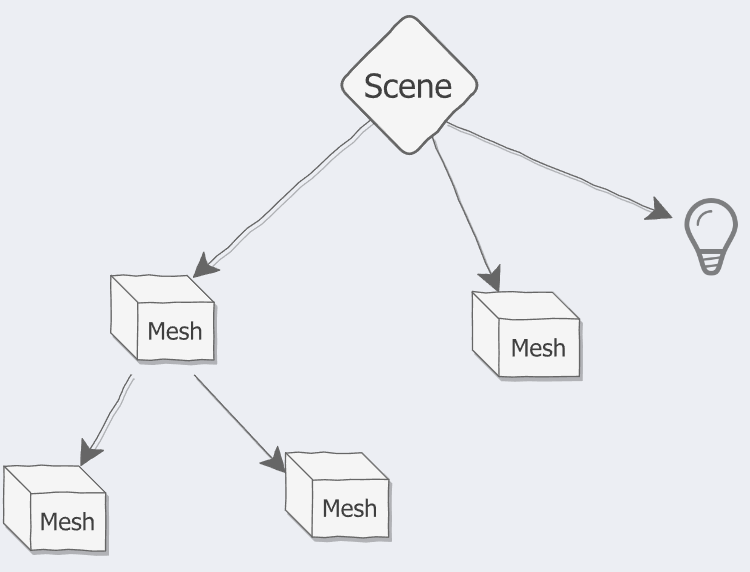
- Using each object's
.addand.removemethods, we can create and manipulate the scene graph. - Each object in the scene graph (except the top-level scene) has only one parent and can have any number of children.
- The renderer traverses the scene graph, starting from the scene, and uses each object's position, rotation, and scale relative to its parent to determine where to draw it.
- Each object has its own coordinate system: the top-level scene defines world space, while every other object defines its own local space.
- Transforming a
meshin thesceneoperates in world space; transforming a childmeshwithin a parentmeshoperates in local space. - A child
meshis always relative to its parentmesh's coordinate system. After removing and re-adding to replace the parent, the childmesh's properties likepositionare relative to the new parent's coordinate system. - What we ultimately see on screen is in world space
You can access all children of a scene object using the
.childrenarrayThere are more complex methods to access specific children, such as the
Object3d.getObjectByNamemethod. However, when you don't know an object's name or it doesn't have one, directly accessing the.childrenarray is useful.
Translation Transform
We perform translation by changing an object's .position property. Translating an object moves it to a new position within its immediate parent's coordinate system. Each object starts at the origin within its parent's coordinate system.
We call such an ordered list of numbers a vector, and because there are three numbers, it's a 3D vector.
We can translate an object along the X, Y, and Z axes one at a time, or we can use position.set to translate along all three axes at once:
// translate one axis at a time
mesh.position.x = 1;
mesh.position.y = 2;
mesh.position.z = 3;

// translate all three axes at once
mesh.position.set(1, 2, 3);
Translation directions:
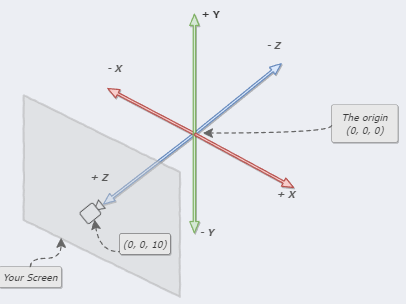
Position is stored in the Vector3 class
Three.js has a special class for representing 3D vectors called Vector3. This class has .x, .y, and .z properties and a .set method to help us manipulate them. Whenever we create any scene object, such as a Mesh, a Vector3 is automatically created and stored in .position:
// when we create a mesh ...
const mesh = new Mesh();

// ... internally, three.js creates a Vector3 for us:
mesh.position = new Vector3();
three.js also has classes for representing 2D vectors and 4D vectors
Scale Transform
As long as we scale by the same amount on all three axes, scaling an object makes it larger or smaller. If we scale axes by different amounts, the object will be squashed or stretched.
Like .position, .scale is also stored in a Vector3. An object's initial scale is (1, 1, 1):
// when we create a mesh...
const mesh = new Mesh();

// ... internally, three.js creates a Vector3 for us:
mesh.scale = new Vector3(1, 1, 1);
Uniform scaling:
mesh.scale.set(2, 2, 2);
mesh.scale.set(0.5, 0.5, 0.5);
Non-uniform scaling:
// double the initial width
mesh.scale.x = 2;

// halve the initial width
mesh.scale.x = 0.5;
Negative scale values mirror the object:
// mirror the object
// mirror the mesh across the X-axis
mesh.scale.x = -1;

// mirror the mesh across the Y-axis
mesh.scale.y = -1;

// mirror the mesh across the Z-axis
mesh.scale.z = -1;// mirror and squash
// mirror and squash mesh to half width
mesh.scale.x = -0.5;This is easy to understand: a vertex at (1, X, X) transforms to (-1, X, X), and when all points transform this way, it creates a mirror effect.
Cameras and lights cannot be scaled
Rotation Transform
Rotation requires more care compared to translation or scaling. This is for several reasons, but primarily because rotation order matters.
Different rotation orders may not give the same result, depending on whether the dimensions are uniform.
The humble
Vector3class we use for.positionand.scaleis insufficient for storing rotation data. Instead, three.js uses not one but two mathematical classes to store rotation data. We'll look at the more detailed one here: Euler angles. Fortunately, it's similar to theVector3class.
Euler angles in three.js are represented using the Euler class. Like .position and .scale, when we create a new scene object, an Euler instance is automatically created and assigned default values.
// when we create a mesh...
const mesh = new Mesh();

// ... internally, three.js creates an Euler for us:
mesh.rotation = new Euler();
Like Vector3, it has .x, .y, and .z properties, as well as a .set method; you can create your own Euler instances; you can omit parameters to use defaults. Similarly, the default value for all axes is zero.
By default, three.js rotates in the object's local space around the X-axis, then the Y-axis, and finally the Z-axis. We can change this using the Euler.order property. The default order is "XYZ", but "YZX", "ZXY", "XZY", "YXZ", and "ZYX" can also be used.
Rotation units are radians
We can use .degToRad utility to convert degrees to radians.
import { MathUtils } from 'three';

const rads = MathUtils.degToRad(90); // 1.57079... = π/2
Another rotation class: Quaternions
We can use quaternions and Euler angles interchangeably. When we change mesh.rotation, the mesh.quaternion property updates automatically, and vice versa. This means we can use Euler angles when they're suitable and switch to quaternions when they're appropriate.
Euler angles have several drawbacks that become apparent when creating animations or doing math involving rotations. In particular, we can't add two Euler angles together (more famously, they also suffer from a problem called gimbal lock). Quaternions don't have these drawbacks. On the other hand, they're harder to use than Euler angles, so for now we'll stick with the simpler Euler class.
For now, note these two ways to rotate objects:
- Using Euler angles, represented with the
Eulerclass and stored in the.rotationproperty. - Using quaternions, represented with the
Quaternionclass and stored in the.quaternionproperty.
Here are some important things to note:
- Not all objects can be rotated. For example, the
DirectionalLightwe introduced in the previous chapter cannot be rotated. Lights shine from a position to a target, and the light's angle is calculated based on the target's position rather than the.rotationproperty. - Angles in three.js are specified using radians instead of degrees. The only exception is the
PerspectiveCamera.fovproperty, which uses degrees to match real-world photography conventions.
Transformation Matrix
1 0 0 0
0 1 0 0
0 0 1 0
0 0 0 1
It has four rows and four columns, so it's a 4×4 matrix, and it stores an object's complete transformation, which is why we call it a transformation matrix. Similarly, there's a three.js class to handle this type of mathematical object called Matrix4. There's also a class representing 3×3 matrices called Matrix3. When a matrix has all 1s on the main diagonal and 0s everywhere else, like the above, we call it an identity matrix, I.
Compared to individual transformations, matrices are more efficient for CPU and GPU processing. They represent a compromise that gives us the best of both worlds. We humans can use the simpler .position, .rotation, and .scale properties, and then whenever we call .render, the renderer updates each object's matrix and uses them for internal calculations.
When we create a mesh, a local transformation matrix is automatically created:
// when we create a mesh
const mesh = new Mesh();

// ... internally, three.js creates a Matrix4 for us:
mesh.matrix = new Matrix4();
Normally, we don't need to manually call
.updateMatrixbecause the renderer updates each object's matrix before rendering. However, here we want to see the matrix changes immediately, so we must force an update. (Or render once, which also updates it)
mesh.position.x = 2;
mesh.position.y = 4;
mesh.position.z = 6;

mesh.updateMatrix();
1 0 0 2
0 1 0 4
0 0 1 6
0 0 0 1mesh.scale.x = 5;
mesh.scale.y = 7;
mesh.scale.z = 9;
mesh.updateMatrix();5 0 0 2
0 7 0 4
0 0 9 6
0 0 0 1Rotations around X, Y, Z axes:
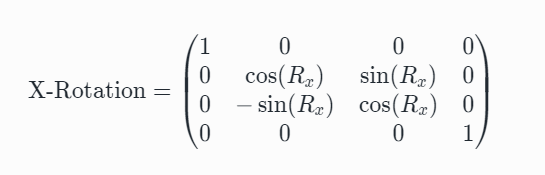
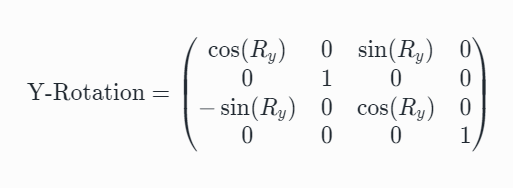
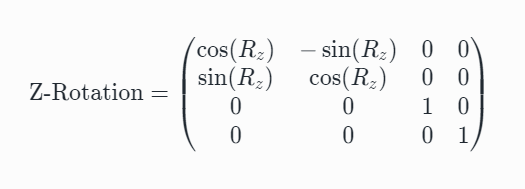
Understanding: When rotating, if the viewpoint doesn't change, lengths will change unless symmetric, which is why scaling changes occur
World Matrix:
As we've mentioned many times, what matters to us is the object's final position in world space, because that's what we see after rendering the object. To help calculate this, each object has a second transformation matrix, the world matrix, stored in Object3D.matrixWorld. These two matrices are mathematically identical. They're both 4×4 transformation matrices. When we create a mesh or any other scene object, both the local matrix and world matrix are automatically created.