Texture Mapping
This note is based on DISCOVER three.js, mostly excerpts with some personal understanding
Basic Knowledge
In the simplest terms, texture mapping means taking an image and stretching it over the surface of a 3D object. We call images used in this way textures, and we can use textures to represent material properties like color, roughness, and opacity. For example, to change the color of a geometric area, we change the color of the corresponding area in the texture overlaid on top, just like you see in the color texture attached to the face model above.
While taking a 2D texture and stretching it onto a regular shape like a cube is easy, doing this for irregular geometry like a face is much more difficult, and many texture mapping techniques have been developed over the years. Perhaps the simplest technique is projection mapping, which projects a texture onto an object (or scene) as if it's been shone through a movie projector. Imagine placing your hand in front of a movie projector and seeing the image projected onto your skin.
While projection mapping and other techniques are still widely used for things like creating shadows (or simulating projectors), this isn't suitable for attaching a face's color texture to face geometry. Instead, we use a technique called UV mapping, which allows us to create connections between points on the geometry and points on the face.
Data representing UV mapping is stored on the geometry. Three.js geometries like BoxBufferGeometry already have UV mapping set up, and in most cases, when you load a face model created in an external program, it will also have UV mapping ready to use.
Texture Types
uv-test-bw.png is a normal 2D image file stored in PNG format, and we'll load it using TextureLoader, which returns an instance of the Texture class. You can use any image format supported by browsers in the same way, such as PNG, JPG, GIF, BMP. This is the most common and simplest type of texture we'll encounter: data stored in a simple 2D image file.

There are also loaders for specialized image formats like HDR, EXR, and TGA, which have corresponding loaders like TGALoader. Similarly, once loaded, we get a Texture instance that we can use in roughly the same way as a loaded PNG or JPG image.
Beyond this, three.js also supports many other types of textures that aren't simple 2D images, such as video textures, 3D textures, canvas textures, compressed textures, cube textures, equirectangular textures, and more.
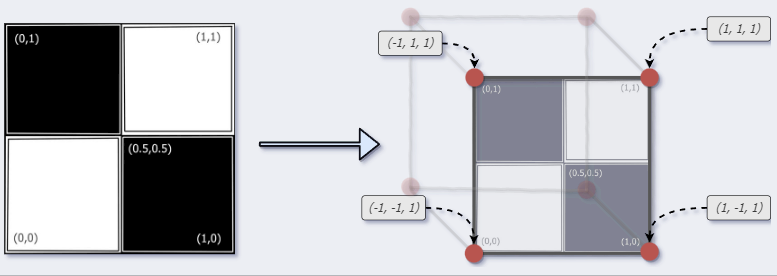
In the image above, the upper-left corner of the texture has been mapped to a vertex coordinate at the corner of the cube (-1,1,1):
(0,1) ⟶ (-1,1,1)
Similar mappings have been done for the other five faces of the cube, creating a complete copy of the texture on each of the cube's six faces:
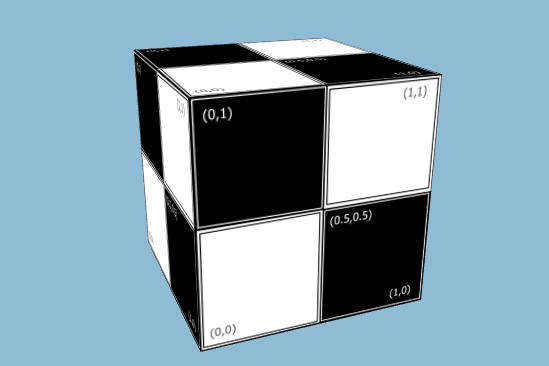
cube.js
import {
  BoxBufferGeometry,
  MathUtils,
  Mesh,
  MeshStandardMaterial,
  TextureLoader,
} from 'three';

function createMaterial() {
  // create a texture loader.
  const textureLoader = new TextureLoader();
  // load a texture
  const texture = textureLoader.load(
    '/assets/textures/uv-test-bw.png',
  );

  // create a "standard" material using
  // the texture we just loaded as a color map
  const material = new MeshStandardMaterial({
    map: texture,
  });

  return material;
}

function createCube() {
  const geometry = new BoxBufferGeometry(2, 2, 2);
  const material = createMaterial();
  const cube = new Mesh(geometry, material);

  cube.rotation.set(-0.5, -0.1, 0.8);

  const radiansPerSecond = MathUtils.degToRad(30);

  cube.tick = (delta) => {
    // increase the cube's rotation each frame
    cube.rotation.z += delta * radiansPerSecond;
    cube.rotation.x += delta * radiansPerSecond;
    cube.rotation.y += delta * radiansPerSecond;
  };

  return cube;
}

export { createCube };